
🌐 Internet Abroad: How to Stay Connected Without Roaming Charges? 📶
Introduction
Traveling abroad can quickly become expensive if you use your mobile data plan without taking precautions. This article will guide you on how to prepare your phone before you leave, explore the various options for accessing the internet once you're at your destination, and communicate without incurring excessive charges. And if you're looking to fully master the use of your iPhone or iPad while traveling, consider joining our comprehensive course, where we dive deeper into these topics.
Preparation Before Departure
Before leaving your country, it's important to disable certain features on your phone to avoid unexpected fees. Start by turning off "Data Roaming" in your phone's settings. On an iPhone, you can do this by going to Settings > Cellular > Cellular Data Options, then toggling off "Data Roaming" (except in one case we'll discuss later).

What Are Your Options for Internet Access Abroad?
There are several ways to stay connected to the internet while traveling abroad. In this section, we'll present these options, highlighting their pros and cons. In the next section, we'll go over practical steps for using these options effectively.
Public Wi-Fi (-)
One of the simplest and most cost-effective solutions is to connect to public Wi-Fi networks. This option is free and increasingly available, although it depends on your destination. In some places, like resorts, Wi-Fi is available almost everywhere. However, this option has its limits, especially regarding availability.
Travel Option with Your Provider ($$$)
Phone carriers like Bell or Vidéotron offer travel packs integrated into your current plan. This option is extremely easy to set up, but it's also the most expensive. For example, Bell charges around $16 per day for Mexico. We do not recommend this option due to its high cost.
Local SIM Card ($)
Buying a local SIM card is often the cheapest solution. For instance, in Mexico, a SIM card can cost between $1 for one day and $15 for 30 days. The downside is that you need to be on-site to buy it, usually at the airport. Avoid buying a SIM card before you leave, as they are often much more expensive when delivered to your home.
eSIM: The Middle Ground ($)
An eSIM offers a good balance between simplicity and cost. You can obtain and activate it before you even leave, either from home or at the airport, as long as you have a Wi-Fi connection. Prices are generally reasonable, ranging from $6 for 7 days to $15.50 for 30 days in Mexico. Just make sure your phone is compatible with eSIMs (iPhone XS and newer). For this solution, we recommend using Airalo.

⚠️ Once activated, don't forget to turn off "Data Roaming," but we'll cover this in more detail in the next section.
How to Use Your Chosen Option?
To avoid extra charges and manage your data usage abroad, it's crucial to adjust your settings and habits according to the option you’ve chosen for internet access. Here are some practical tips for each option.
Using Public Wi-Fi
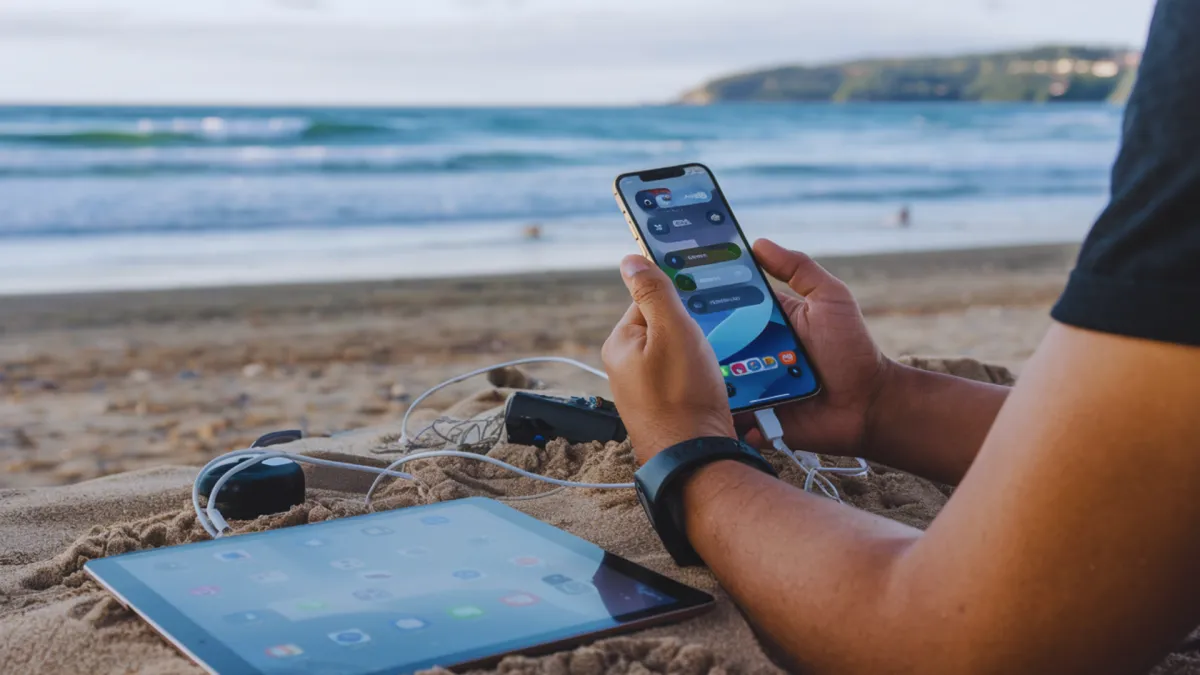
If you choose public Wi-Fi, be sure to turn off data roaming to avoid accidentally using mobile data. To do this, go to Settings > Cellular and turn off "Cellular Data" (see the first image at the top of this article).
To connect to public Wi-Fi, go to Settings > Wi-Fi and select the desired network. Note that some public Wi-Fi networks may require an access code or prior registration. Check with the location providing the Wi-Fi for the necessary information.
Using an eSIM
You can purchase an eSIM online from many mobile service providers. We recommend using Airalo for a convenient option. Some travel agencies also offer eSIMs for travelers.
How to activate it? There are two ways to activate an eSIM:
Scan a QR Code:
Go to Settings > Cellular > Add Cellular Plan
Scan the QR code provided by your carrier.
Follow the on-screen instructions.
Through the Provider's App:
Open the provider’s app.
Follow the instructions to add and activate the eSIM.
In both cases, make sure you are connected to a Wi-Fi network and wait for the activation, which can take 5 to 10 minutes.
Once the eSIM is activated, it is recommended to turn off data roaming on your primary SIM card to avoid roaming charges. Go to Settings > Cellular > Primary and turn off "Data Roaming."

You also have the option to disable the primary SIM card entirely if you don't think you'll need it, and this can be done without removing the SIM card from the phone.
Using a Local SIM Card
If you choose to use a local physical SIM card, you’ll need to temporarily replace your primary SIM card. This means your main plan will be inaccessible, eliminating the risk of roaming fees. However, you won’t be able to make or receive calls or texts from your usual number and will have a different number.
⚠️ Keep your primary SIM card safe. It’s very small, so you might want to prepare some tape to stick it somewhere secure. You’ll need to put it back in when you return to regain your number and services.
Using the Travel Option with Your Provider
If you choose your provider’s travel option, keep data roaming on, as this option is designed to cover data usage abroad. However, be aware of the data limit included in your plan to avoid extra charges.
We recommend contacting your provider to get more details and ensure you fully understand your plan's terms.
Managing Apps and Controlling Data Usage
Regardless of the option you choose, it's important to monitor and control which apps use your data. Here are a few steps to follow:
Go to Settings > Cellular: Here you can see which apps are using data and select which ones can or cannot use cellular data.
Reset Statistics: When you start a new period (e.g., when arriving in a new country), reset your data statistics to track your usage accurately.
Enable Low Data Mode: This option helps reduce data usage in the background. To activate it, go to Settings > Cellular. From there, if you have an eSIM installed, go to "Primary," otherwise go to "Cellular Data Options." In either case, follow "Data Mode" to select "Low Data Mode."

How to Communicate Abroad
Once connected, you have the full power of the internet at your fingertips to use various communication apps without extra charges.
Email: Email is a service accessible via the internet, which is not tied to your physical address or phone provider. This means you can send and receive emails from anywhere in the world, as long as you have an internet connection.
iMessage: Use iMessage to send messages that appear as blue bubbles, indicating they are sent via the internet and not as paid SMS. To avoid extra charges, make sure to turn off the "Send as SMS" option in Settings > Messages.
Messaging Apps: Apps like Messenger, WhatsApp, and others are also great for instant messaging and voice calls, as long as you’re connected to the internet.
Video Calls: Use Facetime, Skype, and other similar apps for video or audio calls. These apps work well even without video enabled, helping to reduce data usage. ⚠️ Video calls can quickly consume data, so we recommend using them primarily over Wi-Fi.
Avoid:
Traditional Phone Calls: Avoid dialing numbers directly or accepting calls to and from your home country, as these can result in high fees.
Text Messages (SMS): While receiving SMS doesn't incur charges, avoid replying as this can lead to significant costs.
📝 Conclusion
Staying connected while traveling abroad doesn't have to be costly or complicated. By choosing the right internet access method—whether it's public Wi-Fi, an eSIM, or a local SIM card—you can avoid roaming charges and stay connected seamlessly. Adjusting your phone settings and managing data usage are key to a smooth travel experience. For more tips and expert guidance, explore our comprehensive iPad and iPhone course, which includes new video updates every Monday and the latest insights, like those in iOS 18.

TTC is an online education platform dedicated to helping individuals master their iPad and iPhone.
Phone
+1 (855) 572-2031
Monday through Friday
9 a.m. - 5 p.m.
Follow us

Courses
Grab your FREE E-Book Guide
Get our exclusive E-book packed with 10 simple tips to help you use your iPhone and iPad better and save time.
📩 The guide will be sent to you immediately by email
Copyrights 2024 | The Tech Course™ | Terms & Conditions
